Electricity Contracts: Period Assignments and CO2 Factors
What's new
Electricity contracts in Ento now support dated meter assignments. This means a meter can switch from one contract to another on a specific date — and all historical data before that date is preserved under the original contract.
Good to know: Existing setups are fully backwards compatible. Nothing changes for your current setup until you actively choose to assign a new contract.
Key concepts
Contract assignment — the link between a meter and a contract, with a start date. A meter can have multiple assignments over time, each covering a different period.
Superseding a contract — creating a new contract that replaces an existing one. All meters previously assigned to the old contract are automatically moved to the new one from the switchover date. The old contract remains active for its original period.
Fixed CO2 factor — a contract can specify a fixed CO2 emission factor for electricity, for example 0 in cases where the electricity is certified as renewable.
How to add an electricity contract
- Go to Settings → Contracts → Electricity.
- Click New contract.
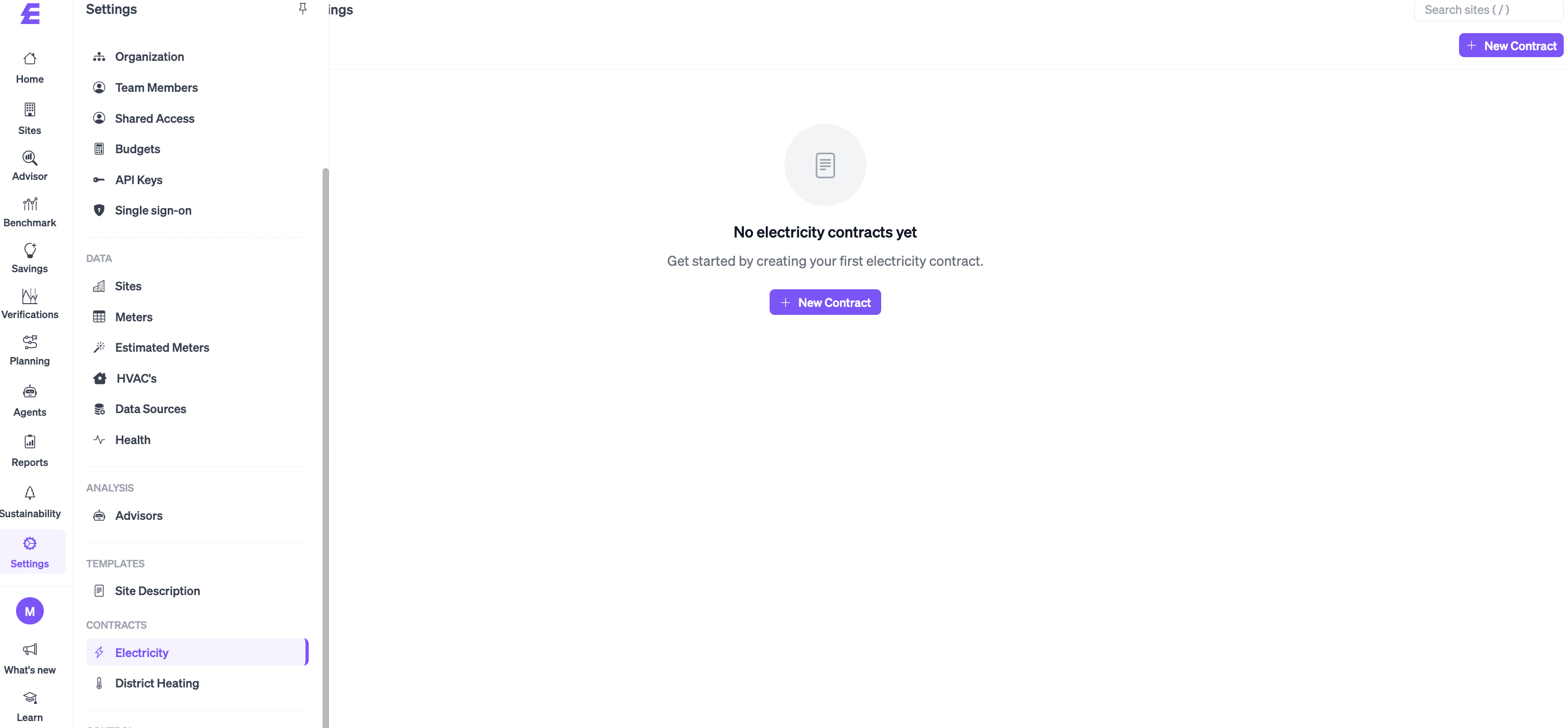
- Fill in the contract details (name, price, CO2 factor if applicable)
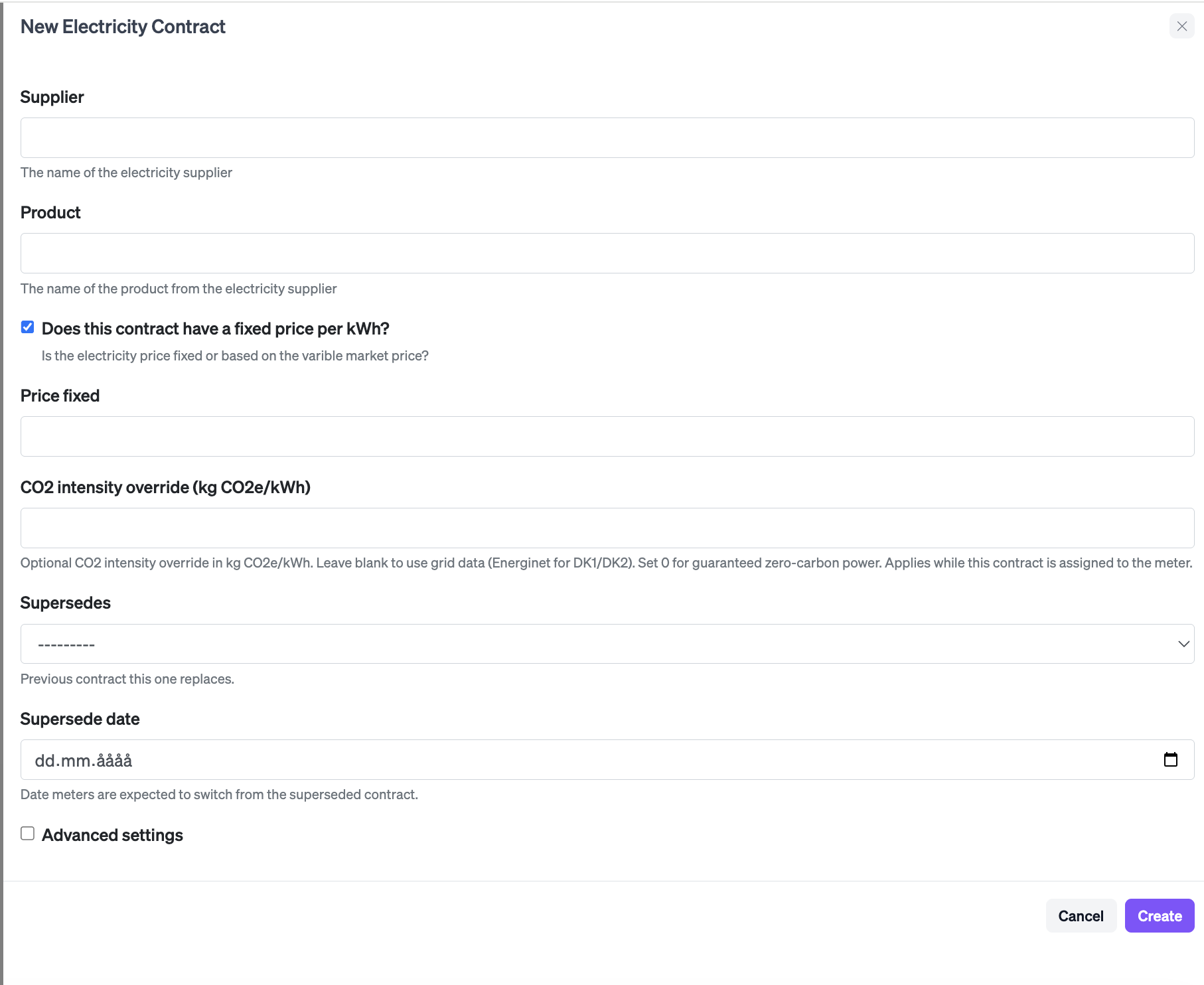
How to create a new contract that supersedes an existing one
Use this when a tariff changes and you want all meters to move to the new rate — without affecting historical reporting.
- Follow the steps listed above
- Under Supersedes, select the existing contract this one replaces.
- Set the start date for the new contract period.
- Save. All meters that were assigned to the old contract will automatically receive a new assignment for the new period. Their history under the old contract is unchanged.
How to add an electricity contract to one or more meters
From meter settings (bulk)
Use this approach when you want to assign a contract to several meters at once.
- Go to Settings → Meters.
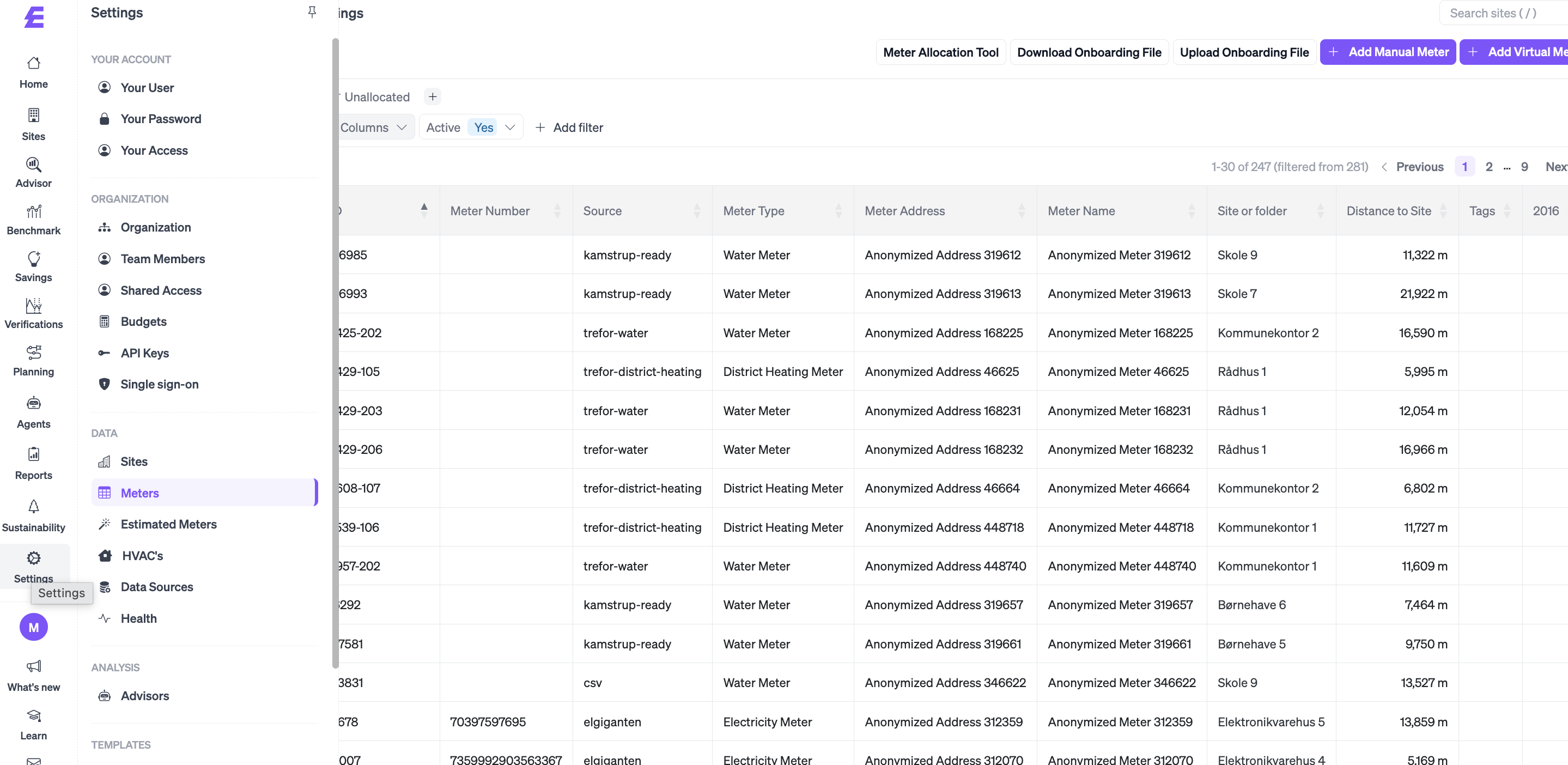
- Select the meters you want to update by checking the boxes on the left.
- Click Table actions (top right of the table).
- Choose Set electricity contract.
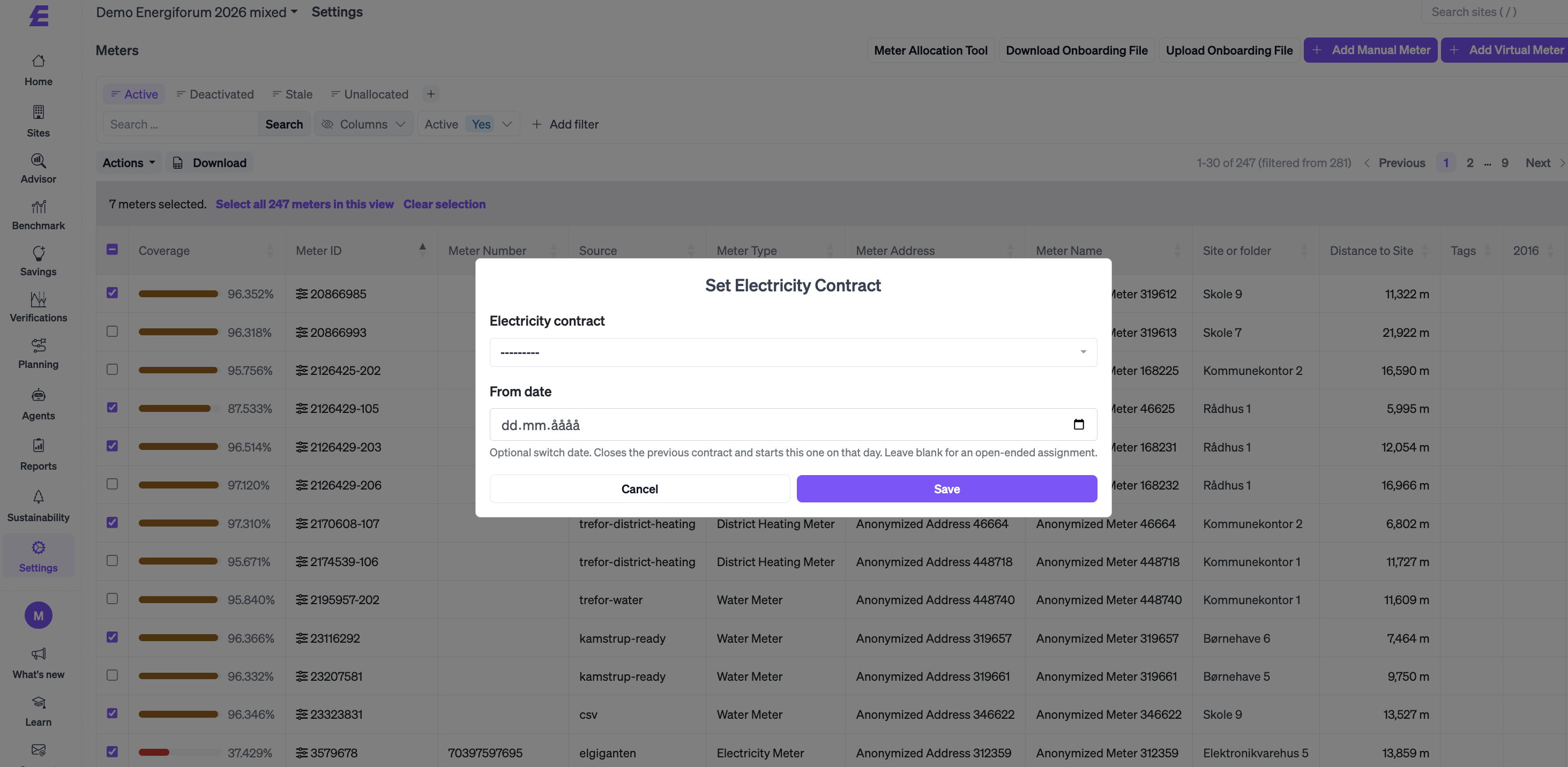
- Select the contract and set the start date for the assignment.
- Confirm. The selected meters are now assigned to the contract from that date.
How to view and manage contract assignments for a single meter
Use this when you need to check or adjust the contract history for one specific meter.
- Go to Settings → Meters and click on the meter you want to edit.
- Open the Contracts tab.
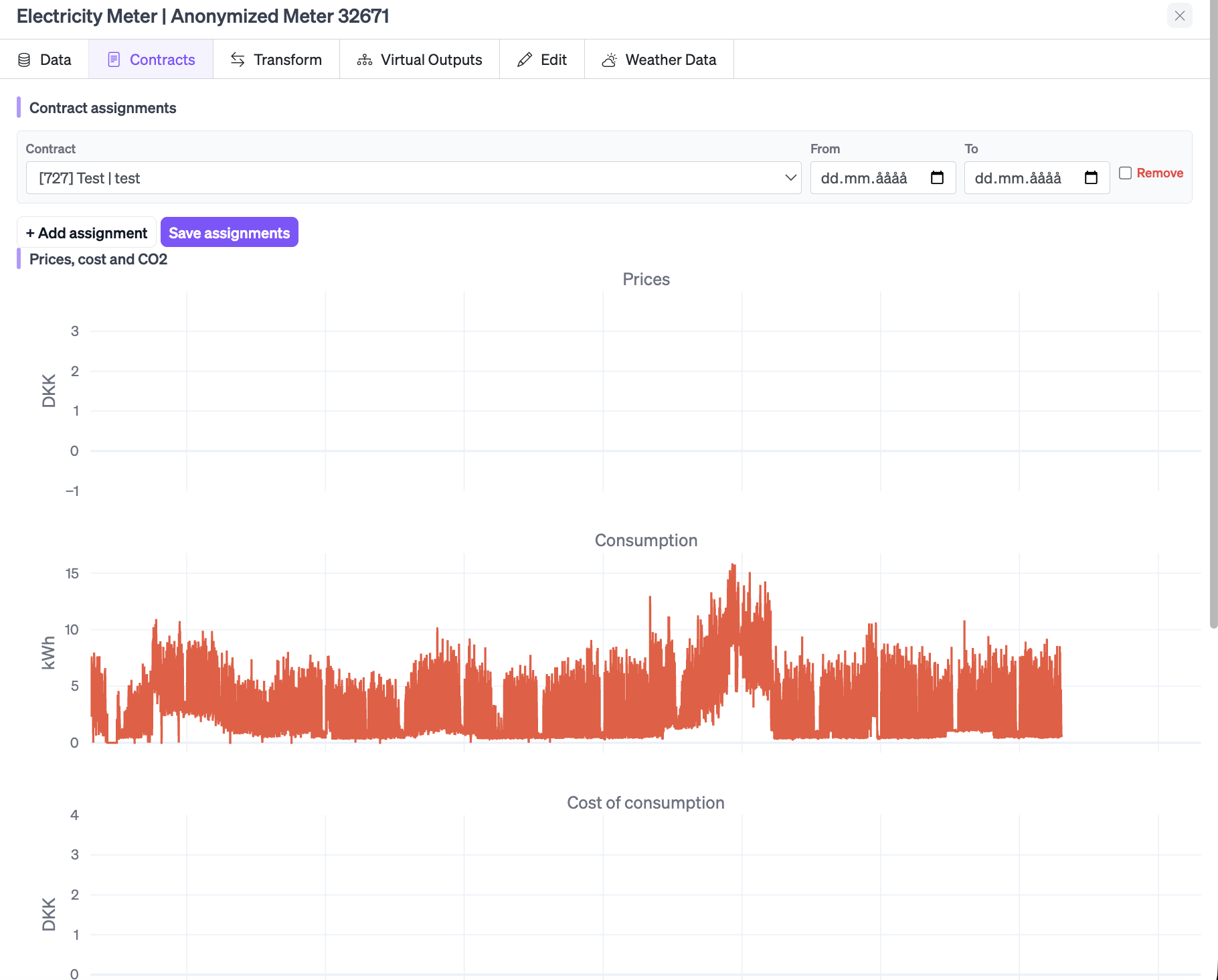
- You will see a list of all contract assignments for this meter, each with a start date.
- The chart below shows the price and cost timeseries across all periods — taking into account the contract that was active at each point in time.
- To add a new assignment, click Add assignment, choose a contract, and set the start date.
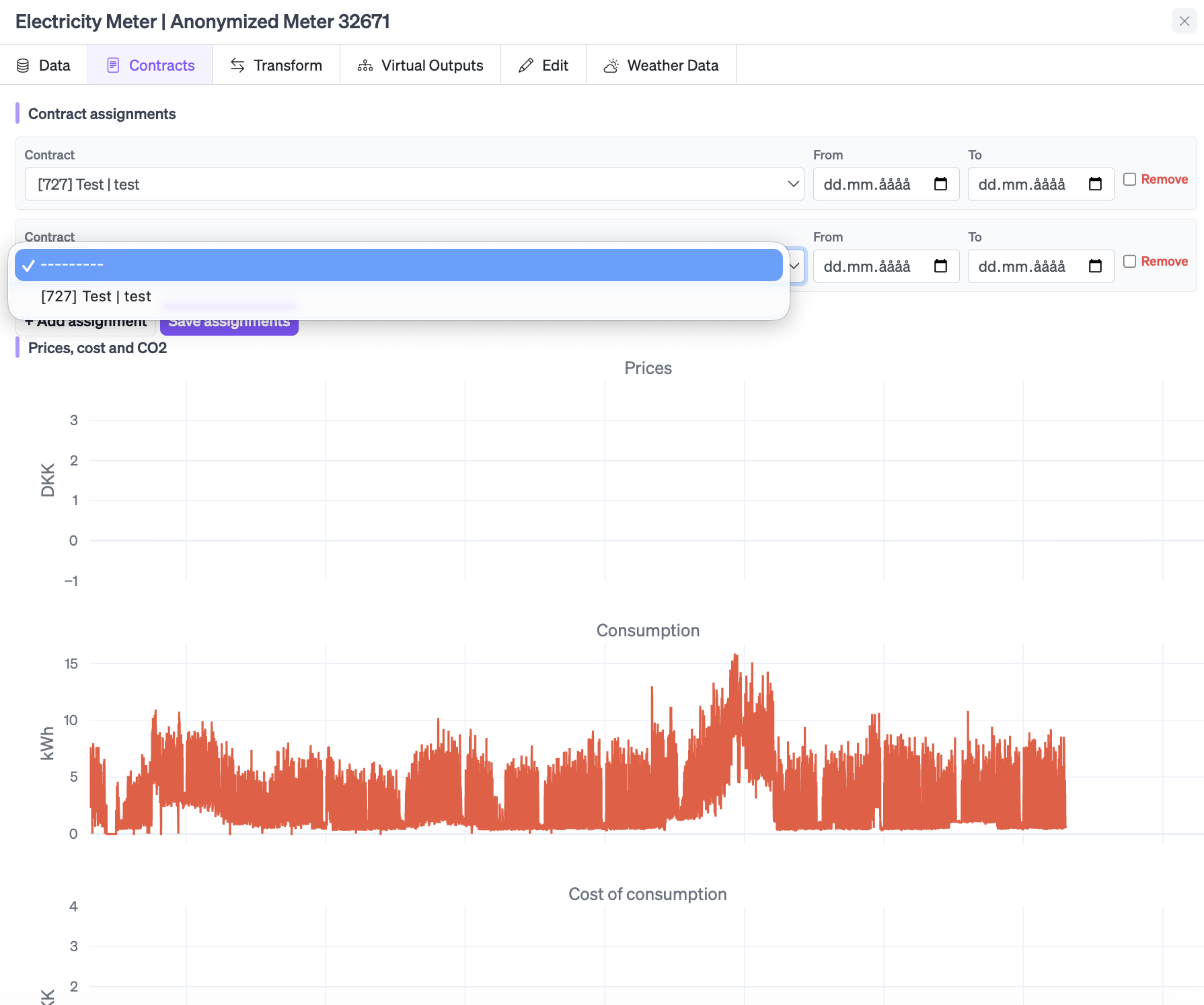
- To remove or adjust an existing assignment, click the edit icon next to it.
How CO2 factors work with contract periods
When a contract includes a fixed CO2 factor for electricity:
- Reports, APIs, and contract views all use the same factor for the period the contract was active.
- If a meter switches to a new contract with a different CO2 factor, data after the switch date uses the new factor. Data before the switch date keeps the old factor.
- This applies to a factor of
0as well — useful for meters covered by a renewable electricity certificate.
Frequently asked questions
Will anything change for my current contracts? No. Existing contracts now have one open period by default. Everything continues to work as before unless you make changes.
What happens to historical data when I switch a meter to a new contract? Historical data stays linked to the contract that was active at the time. Only data from the switchover date onwards is reported under the new contract.
Can I see what contract was active on a specific date? Yes. Under Meter edit → Contracts, the assignment list and the timeseries chart both show exactly which contract applied at any point in time.
Can I set a CO2 factor of 0 for green electricity?
Yes. When creating or editing a contract, you can enter a fixed CO2 factor. Setting it to 0 means that electricity from meters assigned to this contract will not contribute to CO2 emissions in reports.